


Introducing Dynamic Themes in Stac

Introducing Dynamic Themes in Stac
Stac v1.2.0 just dropped, and with it we’re introducing support for a powerful new feature – dynamic theming.
Stac has always focused on enabling fully server-driven UI in Flutter, allowing teams to define screens, widgets, and actions using JSON and update them without redeploying their apps. With this release, that same approach now extends to theming.
No longer are you bound to the colors, typography, brightness, and other visual properties defined at build time. Instead, they can now be defined and updated dynamically at runtime using Stac’s new dynamic theming model.
Why Dynamic Themes Matter
We’re fresh out of the holiday season, and many of the apps we use every day looked noticeably different just a few weeks ago.
Logos were wrapped in festive colors. Backgrounds shifted to reds and greens. Buttons, banners, and typography subtly changed to reflect Christmas, New Year’s, or year-end campaigns. And almost as quickly as they appeared, those themes disappeared, replaced by the default look of the app again.
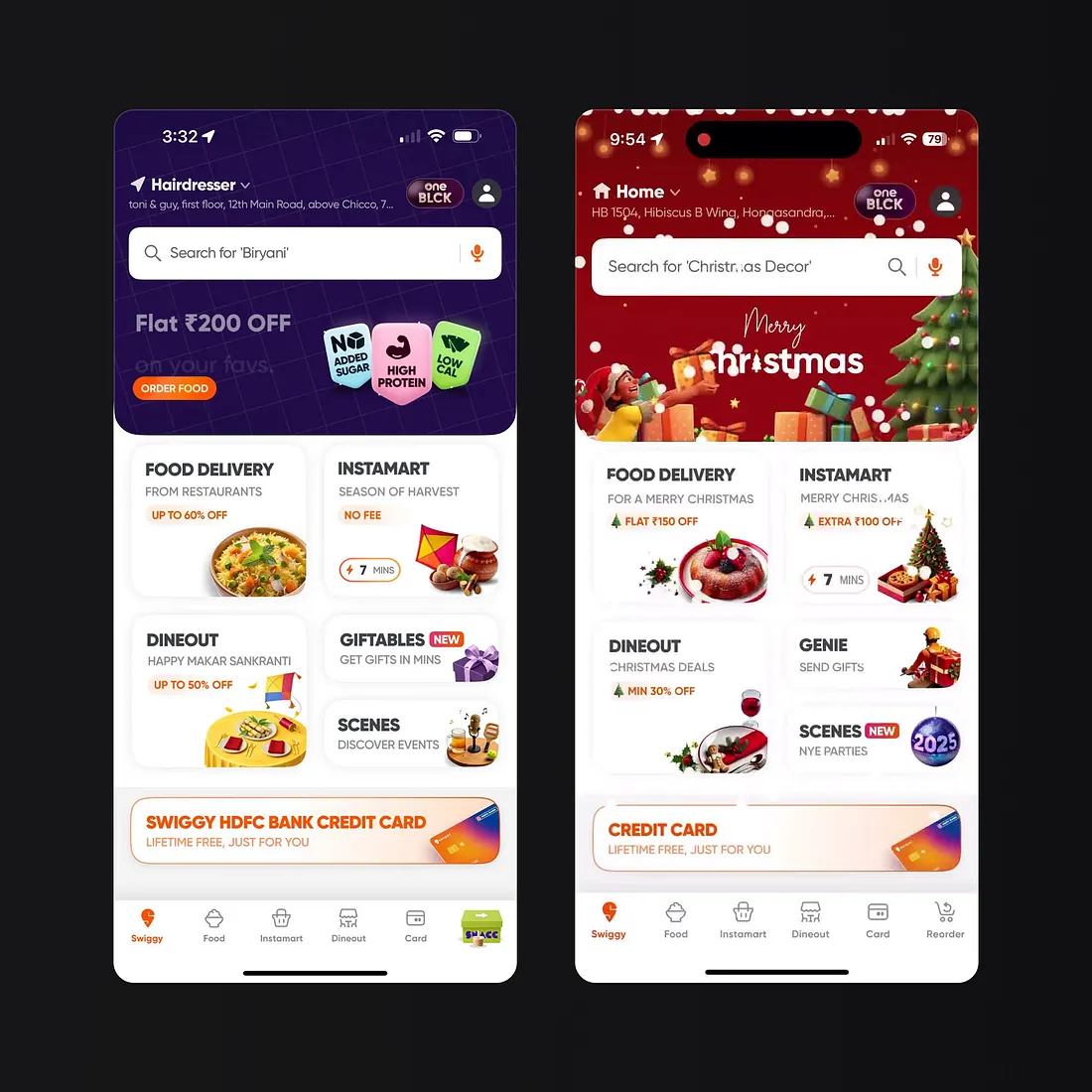
An example of a seasonal UI refresh used for a holiday campaign.
Traditionally, pulling this off at scale means planning releases weeks in advance, and hoping users update in time. Even with server-driven UI, while layouts and content can be changed easily, visual identity is often still locked behind a build.
This is where dynamic themes take things to the next level.
With Stac’s server-driven UI, teams already have the ability to roll out campaign-specific screens without redeploying their Flutter apps. Dynamic theming extends that same flexibility to the entire base look and feel of the app. Colors, typography, and brightness can now shift alongside your content, instantly and remotely.
A holiday campaign no longer needs a dedicated app release. A New Year refresh doesn’t require waiting for approval. Seasonal branding, limited-time promotions, or even one-day visual experiments can all be driven from the backend and rolled back just as easily.
Dynamic themes turn visual styling into a runtime decision. Combined with SDUI, this means your app can evolve visually at any time without the overhead of release cycles.
Adding Dynamic Themes to the Stac Movie App
In this section, we’ll use a simplified version of the Stac example Movie app, with Stac and the CLI already set up. We’ll walk through the process step by step to move the app’s theme into the Stac Cloud and have the application fetch it dynamically at runtime.
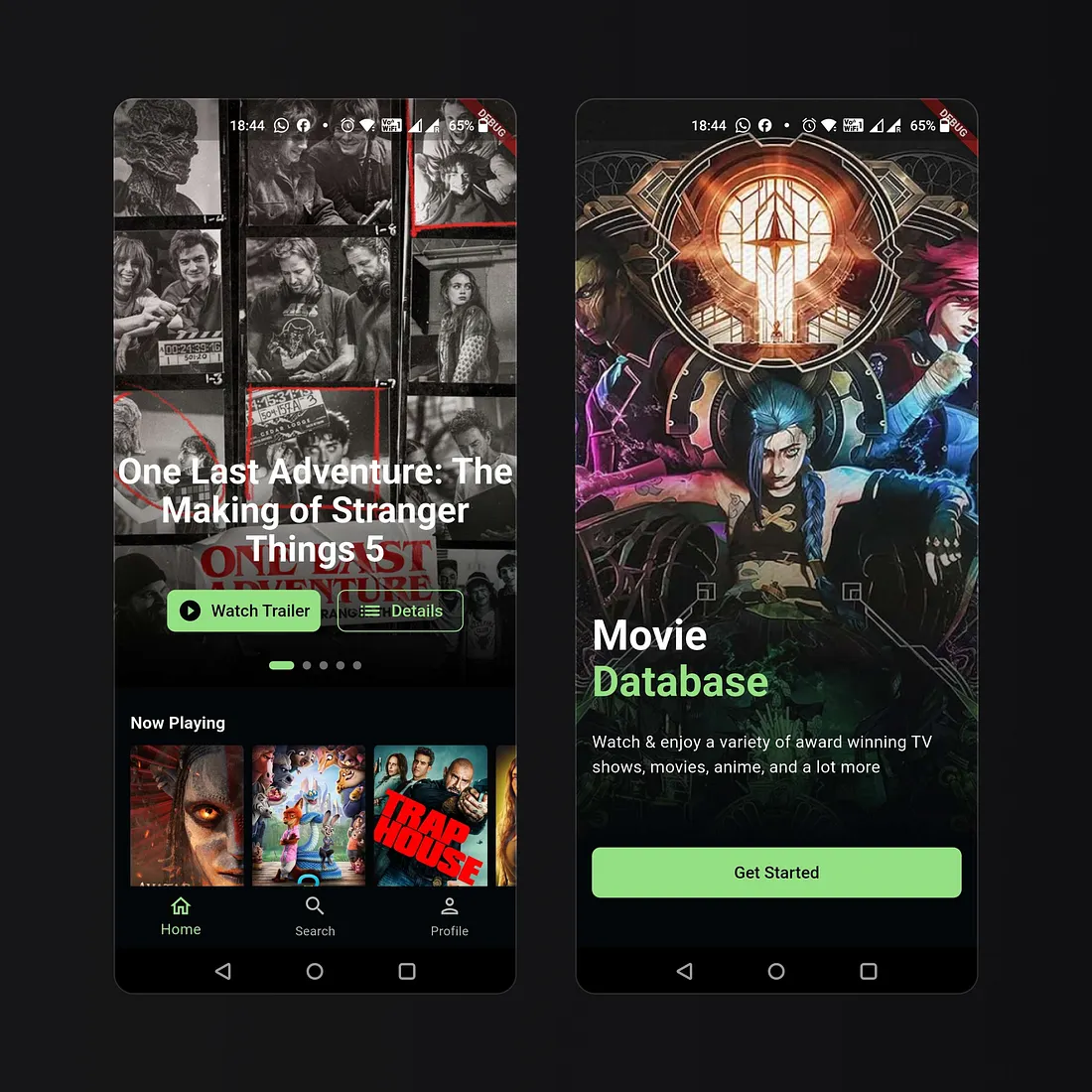
This guide assumes you’re already familiar with Stac. If you’re new, we recommend reviewing the documentation or earlier blog posts before continuing:
Existing Movie App
At the moment, the app already uses StacTheme, but the theme is defined locally in code and shipped with the app.
A simplified version of the existing theme looks like this:
import 'package:stac_core/stac_core.dart';
/// Dark theme for the Movie App.StacTheme get myTheme { return StacTheme( brightness: StacBrightness.dark, colorScheme: StacColorScheme( brightness: StacBrightness.dark, primary: '#95E183', onPrimary: '#050608', secondary: '#95E183', onSecondary: '#FFFFFF', surface: '#050608', onSurface: '#FFFFFF', onSurfaceVariant: '#65FFFFFF', error: '#FF6565', onError: '#050608', outline: '#80FFFFFF', ), );}Here, the theme is defined as a function that returns a StacTheme object. StacTheme is Stac’s DSL equivalent of Flutter’s ThemeData. The overall structure is intentionally very similar, making it easy to translate an existing Flutter theme into Stac.
One notable difference is how values are expressed. For example, colors are defined using hex strings instead of Flutter’s Color objects. StacTheme and Stac DSL are covered in more detail in the Stac docs.
main.dart wires this theme directly into the app:
class MyApp extends StatelessWidget { const MyApp({super.key});
@override Widget build(BuildContext context) { return StacApp( title: 'Stac Movie App', theme: myTheme, homeBuilder: () { return Stac(routeName: 'onboarding_screen'); }, ); }}StacApp bootstraps the application using the locally defined theme, while the UI itself is resolved dynamically. In this case, the onboarding_screen is fetched from Stac Cloud at runtime.
This approach already improves consistency over Flutter’s ThemeData, but the theme is still bundled via the app, and hence locked to code updates in the release cycle.
Next, we’ll move this theme definition into Stac’s DSL.
Defining the Theme Using Stac DSL
To make the theme dynamic, we move the theme definition into the stac/ folder and express it using Stac DSL.
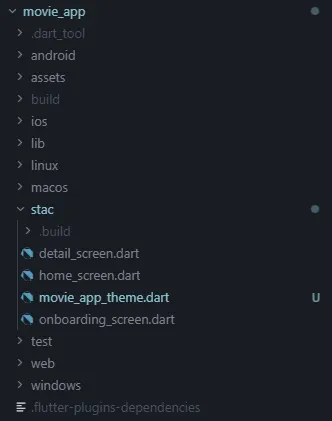
The DSL is still Dart, but it’s declarative and designed to be processed and deployed by Stac, similar to how screens and widgets are defined.
Below is a simplified example of a theme definition for the Movie App. For clarity, we’ll focus only on brightness and color scheme, leaving out advanced sub-themes.
import 'package:stac_core/stac_core.dart';
@StacThemeRef(name: 'movie_app_theme')StacTheme get movieAppTheme => StacTheme( brightness: StacBrightness.dark, colorScheme: StacColorScheme( brightness: StacBrightness.dark, primary: '#95E183', onPrimary: '#050608', secondary: '#95E183', onSecondary: '#FFFFFF', surface: '#050608', onSurface: '#FFFFFF', onSurfaceVariant: '#65FFFFFF', error: '#FF6565', onError: '#050608', outline: '#80FFFFFF', ),);In the next step, we’ll deploy this theme so it can be resolved dynamically by the app.
Deploying the Theme
Once the theme DSL is defined, deploy it using the Stac CLI.
From the project root, run:
stac deployThis uploads the theme configuration to the Stac Console alongside your screens if you had defined any. The output should look something like this:
[INFO] Building project before deployment...[INFO] Found 4 @StacScreen annotated function(s)[SUCCESS] ✓ Generated screen: onboarding_screen.json[SUCCESS] ✓ Generated screen: home_screen.json[SUCCESS] ✓ Generated screen: detail_screen.json[INFO] Found 1 @StacThemeRef definition(s) in stac\app_theme.dart[SUCCESS] ✓ Generated theme: movie_app_theme.json[SUCCESS] Build completed successfully![INFO] Deploying screens/themes to cloud...[SUCCESS] Uploaded screen: onboarding_screen.json[SUCCESS] Uploaded screen: home_screen.json[SUCCESS] Uploaded screen: detail_screen.json[SUCCESS] Uploaded theme: movie_app_theme.json[SUCCESS] Deployment completed successfully!When the theme DSL is processed, the Stac CLI generates the following JSON. This output is written to stac/.build/themes and is what gets deployed to Stac Cloud.
{ "colorScheme": { "brightness": "dark", "primary": "#95E183", "onPrimary": "#050608", "secondary": "#95E183", "onSecondary": "#FFFFFF", "error": "#FF6565", "onError": "#050608", "surface": "#050608", "onSurface": "#FFFFFF", "onSurfaceVariant": "#65FFFFFF", "outline": "#80FFFFFF" }, "brightness": "dark"}Updating the App to Use the Dynamic Theme
Finally, we update main.dart so the app no longer depends on a locally defined theme.
class MyApp extends StatelessWidget { const MyApp({super.key});
@override Widget build(BuildContext context) { return StacApp( title: 'Stac Movie App', theme: StacAppTheme(name: 'movie_app_theme'), homeBuilder: (_) { return Stac(routeName: 'onboarding_screen'); }, ); }}The app’s theme is now resolved dynamically by Stac at runtime, based on what’s deployed on the cloud.
You can tweak the theme DSL however you want, be it change colors, switch brightness, adjust typography, or experiment with different styles. I for one think the app would look amazing in orange:
import 'package:stac_core/stac_core.dart';
@StacThemeRef(name: 'movie_app_theme')StacTheme get movieAppTheme => StacTheme( brightness: StacBrightness.dark, colorScheme: StacColorScheme( brightness: StacBrightness.dark, primary: '#E76946', // changed to orange onPrimary: '#050608', secondary: '#E76946', // changed to orange onSecondary: '#FFFFFF', surface: '#050608', onSurface: '#FFFFFF', onSurfaceVariant: '#65FFFFFF', error: '#FF6565', onError: '#050608', outline: '#80FFFFFF', ),);All we need to do now is run stac deploy to update the theme on the cloud and the changes should be reflected on the app.
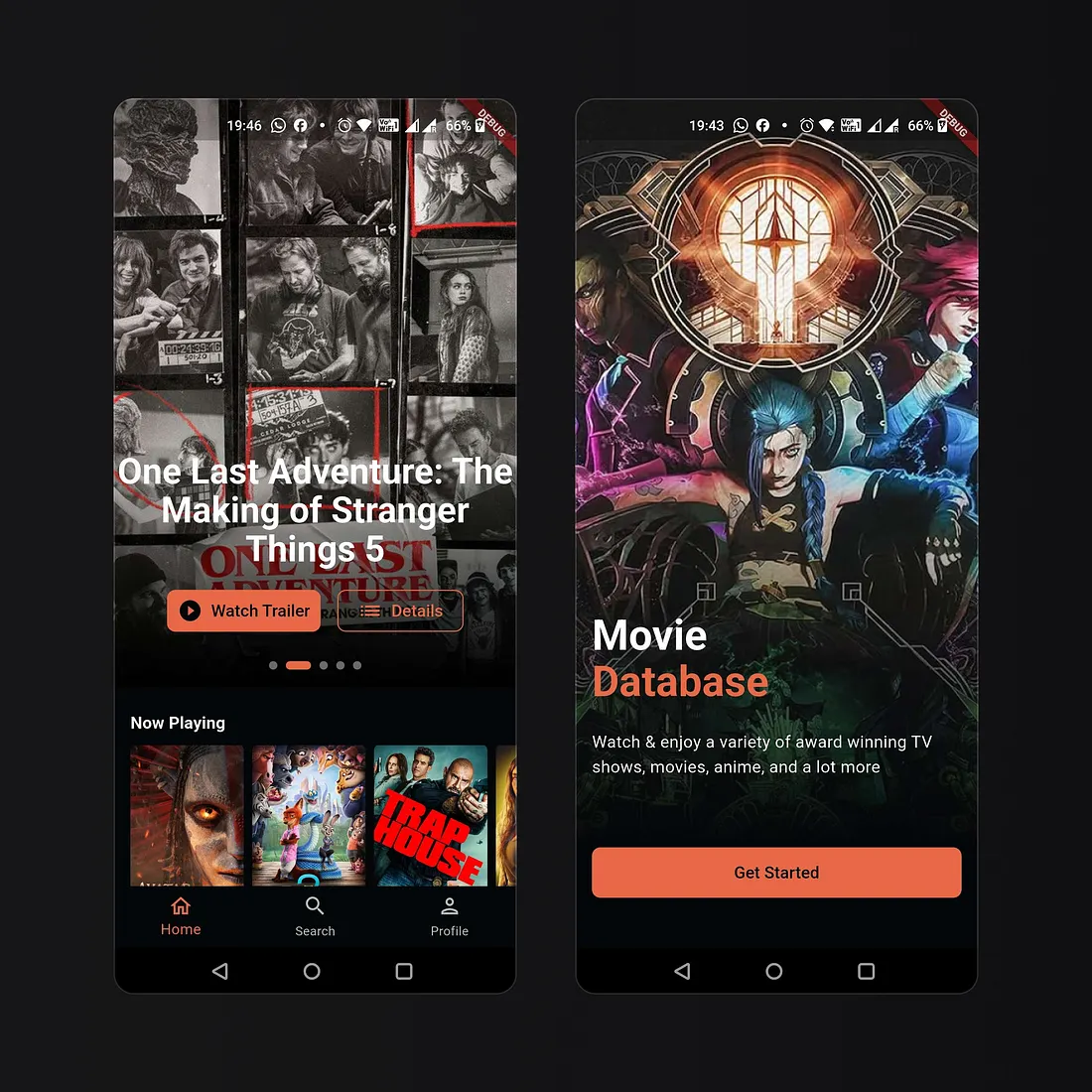
You can have a look at the full Movie App example source here:
Check out our docs for more info on Stac themes:
Conclusion
Dynamic theming completes an important piece of the server-driven UI story in Stac. By moving themes into Stac Cloud, visual styling becomes just as flexible and runtime-driven as layouts, widgets, and actions.
This approach removes theming from the release cycle entirely. Seasonal campaigns, branding updates, accessibility improvements, and visual experiments can now be rolled out instantly and safely without rebuilding or resubmitting your app.
Combined with Stac’s existing SDUI capabilities, dynamic themes give teams full control over both structure and style, enabling truly adaptive Flutter applications.
Thanks for Reading
Thanks for taking the time to read through this walkthrough. I’m excited to see how dynamic theming helps you build more flexible and expressive apps with Stac.
If you have feedback, ideas, or questions, do let me know in the comments.
Happy building.